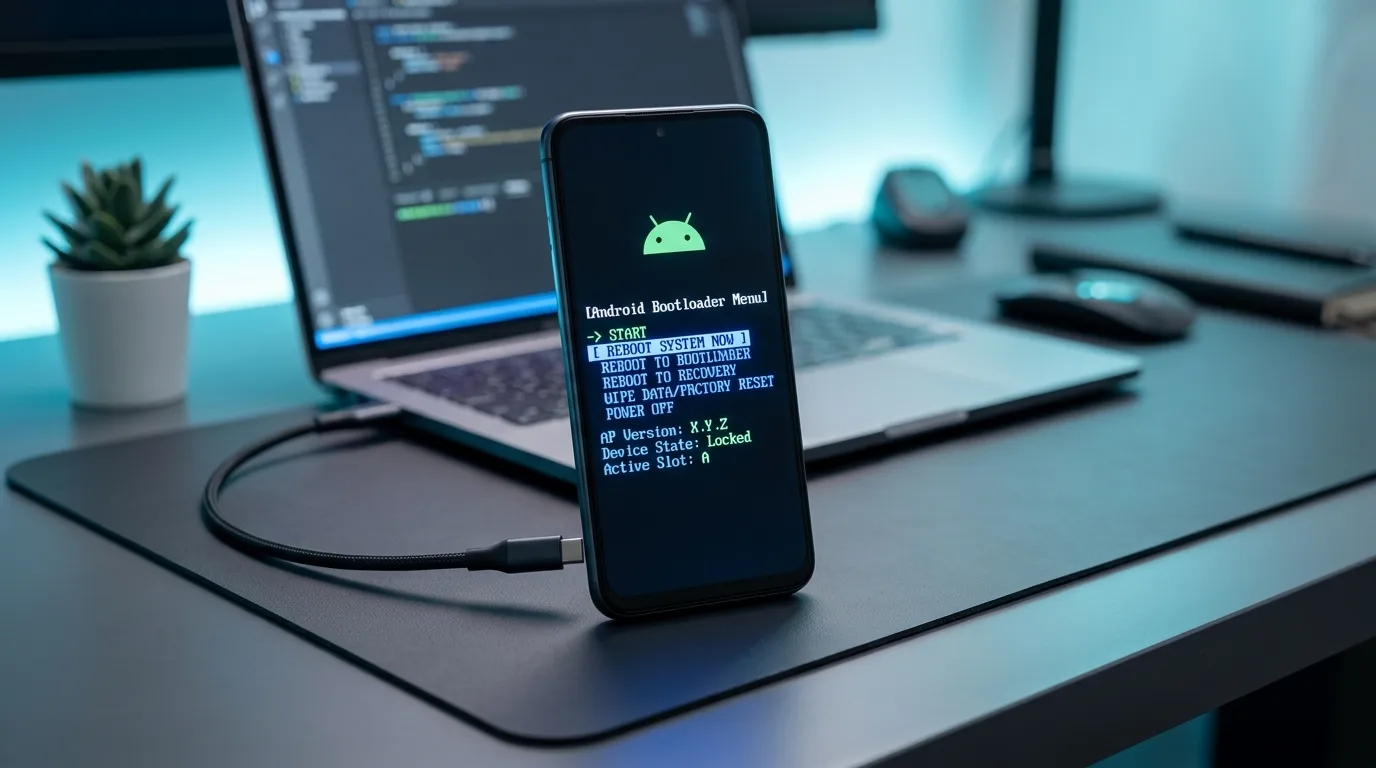
The reboot to bootloader meaning is simple. It tells your phone to restart and stop at a special screen before Android loads. This screen is called bootloader mode, or fastboot mode. It lets you use tools that fix, update, or change your phone’s software. Most people see it by accident, so let’s look at what it means.
You might have pressed a wrong button. Maybe your phone showed a strange menu with the words “reboot to bootloader.” Maybe a guide told you to use it. Either way, you probably want to know if it is safe and what to do next. This article explains it in plain words. You will learn what a bootloader is, how the option works, when to use it, and how to leave it. You will also see mistakes to avoid so you do not harm your phone.
Quick Answer: Reboot to Bootloader Meaning
Reboot to bootloader means “restart the device and open the bootloader instead of the normal system.” The bootloader is a small program that runs first when you turn on your phone. Its main job is to start Android. When you pick this option, the phone stops at the bootloader and waits for your next command.
On most Android phones, the bootloader screen shows a few lines of text. It may show a small robot picture. It often lists the phone model, the software version, and whether the bootloader is locked or unlocked. Some phones show a menu with options like “Start,” “Recovery mode,” and “Power off.”
Think of it like the front door of a house. Normally you walk straight through to the living room, which is Android. With this option, you stop at the door and look at the locks and the wiring before you go inside.
What Is a Bootloader?
A bootloader is the first piece of software that runs when a phone powers on. It lives in a protected part of the phone’s storage. It wakes up the hardware, checks that the system looks safe, and then hands control to Android.
Almost every computer-like device has one. Laptops, tablets, game consoles, and cars with screens all have a startup program. On a phone, the bootloader has a few key jobs.
First, it checks that the operating system has not been changed in a bad way. Many phones use a process called verified boot. The bootloader checks that the software is signed by the company that made it. If something looks wrong, the phone may show a warning screen.
Second, it decides what to start. Most of the time that is Android. But it can also start recovery mode, which is a small repair system, or stay in fastboot mode, which is the screen you see with “reboot to bootloader.”
Third, it protects your phone. A locked bootloader blocks most changes to the system. An unlocked bootloader allows them. That is why phone makers lock it by default.
What Happens When You Choose Reboot to Bootloader
When you pick this option, your phone shuts down its normal apps and then restarts. Instead of loading Android, it stops at the bootloader. Nothing is deleted just from doing this. Your photos, apps, and messages stay where they are.
On the screen, you will usually see fastboot mode. Fastboot is a protocol, which means it is a set of rules that lets a computer talk to your phone. When your phone is in fastboot mode and connected by a USB cable, a computer can send commands to it. Those commands can do things like:
- Flash a new system image, which means installing new software
- Unlock or lock the bootloader
- Install a custom recovery
- Check basic device information
- Restart the phone into another mode
Without a computer, the screen does very little. It is mostly a waiting room. That is why many people are surprised when “nothing happens” after they choose it.
Bootloader Mode vs. Recovery Mode vs. Normal Mode
New users often mix up these modes. They look different and do different jobs. Here is a quick comparison.
| Mode | What It Does | Who Usually Uses It |
|---|---|---|
| Normal (Android) | Runs your apps, calls, and settings | Everyone, every day |
| Bootloader (Fastboot) | Lets a computer send low-level commands to the phone | Advanced users and repair techs |
| Recovery | Lets you wipe data, apply updates, or fix problems | Users fixing a stuck phone |
The difference matters. Recovery mode works inside the phone and often has a simple menu. Bootloader mode is deeper. It sits below recovery and below Android. If recovery is a repair shop, the bootloader is the foundation under the building.
One more note. On many phones, the words “bootloader mode” and “fastboot mode” mean the same screen. Some brands use different names. Samsung phones, for example, use Download mode instead of fastboot. We will cover brands in a moment.
How to Reboot to Bootloader
There are three common ways to get to the bootloader. Which one works depends on your phone.
Using the recovery menu. Some phones show “Reboot to bootloader” in the recovery menu. You use the volume buttons to move up and down and the power button to select. This is where many people first see the phrase.
Using button combinations. With the phone off, you hold a set of buttons while it powers on. On many phones, such as Google Pixel, this is Volume Down plus Power. The exact buttons change by brand, so check your phone’s support page.
Using a computer. If you have Android Debug Bridge (ADB) set up, you can type a command. With the phone connected and USB debugging turned on, the command is adb reboot bootloader. If the phone is already in fastboot mode, you can use fastboot reboot bootloader to restart into the bootloader again.
Many Android phones also let you turn on Developer options. Some versions have an “Advanced reboot” setting. It adds a bootloader choice to the power menu. That setting is not on every phone, though.
If one method does not work, do not force it. Look up your exact model name and read the guide from the maker.
Why People Use Reboot to Bootloader
Most people never need this option. But it helps in a few real situations.
Here are some common examples:
- Installing a custom ROM. A custom ROM is a version of Android made by a community instead of the phone maker. To install one, you often need to unlock the bootloader first.
- Rooting a phone. Rooting gives you deep control of the system. It usually starts in fastboot mode.
- Flashing a factory image. If a phone is stuck in a loop and will not start, a factory image can sometimes bring it back. You flash it from the bootloader.
- Installing an update by hand. Some phone makers share update files you can install yourself.
- Fixing a boot loop. A boot loop is when the phone keeps restarting and never opens. Fastboot lets you replace broken parts of the system.
Imagine your phone froze after a failed update and now restarts again and again. A repair guide may tell you to enter fastboot, connect to a computer, and flash a clean system image. In a case like this, the bootloader is how you get back in.
Is Reboot to Bootloader Safe?
Choosing the option itself is safe. You are only stopping the startup process early. You are not changing any files by simply sitting at the screen. If you press the power button on “Start,” the phone will usually go back to normal.
The risk comes from what you do next. Some actions on this screen can erase your data or even make your phone stop working. Here is a table of common actions and their risk level.
| Action | Risk Level | What to Know |
|---|---|---|
| Looking at the screen | Very low | No changes are made |
| Restarting back to Android | Very low | Phone returns to normal |
| Unlocking the bootloader | Medium | Usually erases all data and may affect your warranty |
| Flashing a system image | High | Wrong file can break the phone |
| Flashing unknown files | High | Can cause a hard brick or security problems |
A “brick” is a phone that will not turn on at all. A “soft brick” can often be fixed. A “hard brick” is much harder, and sometimes it cannot be fixed. Most problems come from using the wrong file for the wrong model.
Also, unlocking the bootloader can lower your phone’s security. Some banking apps and payment apps may stop working on an unlocked device. Phone makers differ in how they handle warranties, so read your maker’s rules before you unlock anything.
Common Mistakes to Avoid
Many problems can be avoided with a little care. These are the mistakes people make most often.
The first mistake is thinking the option is a reset. It is not. Reboot to bootloader does not wipe your phone. If you want a factory reset, that is a different menu.
The second mistake is flashing the wrong file. Every phone model has its own files. A file made for one model can break another, even if the names look close. Always check the model number and the region.
Another mistake is using a low battery. If the phone shuts off during a flash, the system can be damaged. Charge to at least 50 percent before you start anything serious.
People also use poor USB cables. A cheap or worn cable can disconnect in the middle of a command. Use the cable that came with the phone, or a good-quality one.
Finally, some people follow old guides. Android changes over time, and commands for a ten-year-old phone may not work on a new one. Check the date on any guide and make sure it matches your phone.
How to Get Out of Bootloader Mode
If you got here by accident, do not worry. Leaving is usually easy.
Try these steps in order:
- Look at the screen for a menu. Use the volume buttons to move to “Start” or “Restart” and press the power button to choose it.
- If there is no menu, hold the power button for 10 to 30 seconds. This forces the phone to restart.
- If you have a computer connected, type
fastboot rebootand press Enter. - If the phone keeps coming back to the bootloader, check that no button is stuck. A case that presses the volume key can cause this.
- Charge the phone fully and try again.
If none of that works, the phone may have a software problem. The bootloader may be showing up because Android cannot start. In that case, contact the phone maker or a trusted repair shop. Do not try random fixes from unknown websites.
Reboot to Bootloader on Different Brands
Each maker handles this a little differently. The table below shows the common names and methods. These can change with newer models, so treat it as a guide and not a promise.
| Brand | Common Name | Usual Way to Enter |
|---|---|---|
| Google Pixel | Bootloader / Fastboot mode | Hold Volume Down + Power while off |
| OnePlus | Fastboot mode | Hold Volume Up + Power, or use ADB |
| Motorola | Fastboot / Bootloader | Hold Volume Down + Power while off |
| Xiaomi | Fastboot mode | Hold Volume Down + Power while off |
| Samsung | Download mode (not fastboot) | Hold specific volume keys while connecting USB |
Samsung is the big exception. Its phones use Download mode and a tool called Odin instead of fastboot. So if you own a Samsung phone and see “reboot to bootloader,” it may be a menu label that leads to Download mode. The result looks different from other brands.
Keep in mind that some carriers lock the bootloader on phones they sell. In the United States, for example, certain carrier models cannot be unlocked at all. If you plan to unlock, check this before you buy.
Tips for Using the Bootloader Safely
A few habits will keep you out of trouble.
Back up your data first. Even if a step does not say it will erase your phone, it is smart to save photos, contacts, and files. Use cloud backup or copy them to a computer.
Read the full guide before you begin. Do not start a process and read the next step later. Some steps must be done quickly or in a certain order.
Stick with trusted sources. The phone maker’s own support pages and well-known developer sites are safer than random videos or forum posts.
Write down your model number and software version. These details help you pick the right files and get help if something goes wrong.
Go slowly. Fastboot commands run right away. There is often no “Are you sure?” message. If you type a command wrong, the phone will try to do it.
And remember, if you are not sure, you can stop. Choosing “Start” brings you back to normal in most cases.
Frequently Asked Questions
What does “reboot to bootloader” mean on Android?
It means your phone restarts and opens the bootloader screen instead of Android. From there, a computer can send special commands to the phone, or you can choose another startup option.
Does reboot to bootloader erase my data?
No. Just opening the bootloader does not delete anything. Data loss happens only if you take a later step, like unlocking the bootloader or flashing a new system.
Is bootloader mode the same as recovery mode?
No. Recovery mode is a small repair system with options like wiping data or applying updates. Bootloader mode is lower level and is mainly for working with a computer. Many phones let you move from one to the other.
Why is my phone stuck on the bootloader screen?
It could be a stuck button, a failed update, or a damaged system. Try holding the power button for 10 to 30 seconds. If it keeps happening, ask the phone maker or a repair shop for help.
Is fastboot mode the same as bootloader mode?
On many Android phones, yes. The screen is often called both names. Some brands, like Samsung, use a different system called Download mode.
Can I use reboot to bootloader without a computer?
You can open the screen without one, but you can do very little there. Most real tasks, like flashing software, need a computer and a USB cable.
Conclusion
The reboot to bootloader meaning comes down to one idea: your phone restarts and stops at its startup program before Android loads. It is a doorway to tools for repair, updates, and custom changes. By itself, the option is harmless. It does not wipe your phone or change your files.
The danger is in what comes after. Unlocking the bootloader, flashing files, and typing commands can fix a phone, but they can also break it if you rush. Always use files made for your exact model, keep your battery charged, and back up your data first.
If you landed here by mistake, just choose “Start” or hold the power button, and your phone should go back to normal. If you want to go deeper, take your time and use trusted guides. A careful approach protects your phone and your peace of mind.

Hi, I’m Mishi, a content writer and researcher specializing in meanings, interpretations, and informative explanations. With 2 years of experience creating clear, engaging, and SEO-friendly content, I help readers understand the meanings behind words, phrases, names, symbols, numbers, and everyday expressions.
My goal is to provide simple, accurate, and easy-to-understand information that answers readers’ questions while making every topic interesting and useful.